

Confluence
Integrate Confluence spaces with AINexLayer
Confluence OAuth Integration Guide
This guide explains how to set up an Atlassian OAuth 2.0 (3LO) integration for AINexLayer to connect your Confluence spaces.
Step 1: Accessing the Developer Console
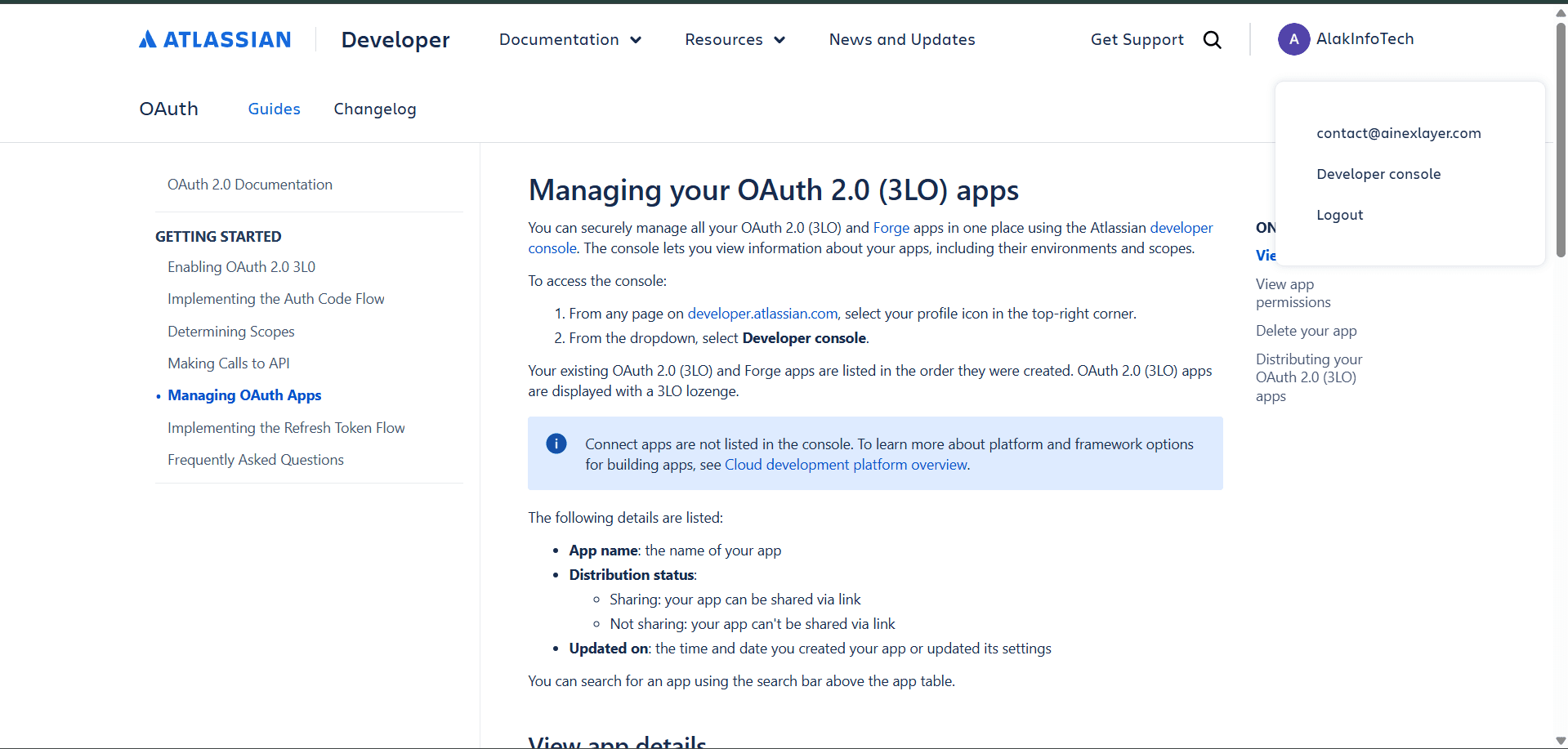
- Navigate to developer.atlassian.com
- Click your profile icon in the top-right corner
- Select "Developer console" from the dropdown
Step 2: Creating a New OAuth 2.0 Integration
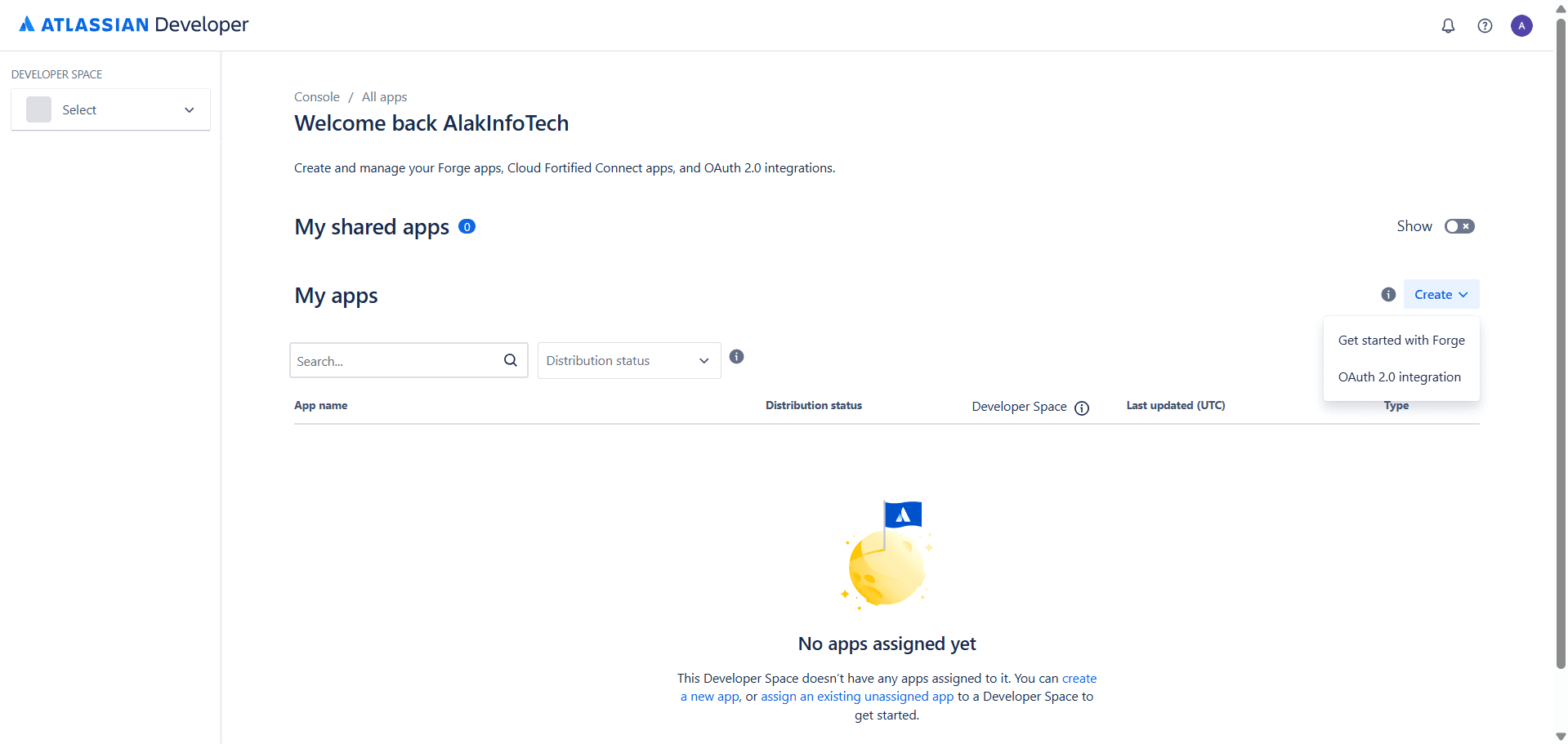
- In the Developer Console, under My apps, click the "Create" button
- Select "OAuth 2.0 integration" from the dropdown
Step 3: Naming Your Integration
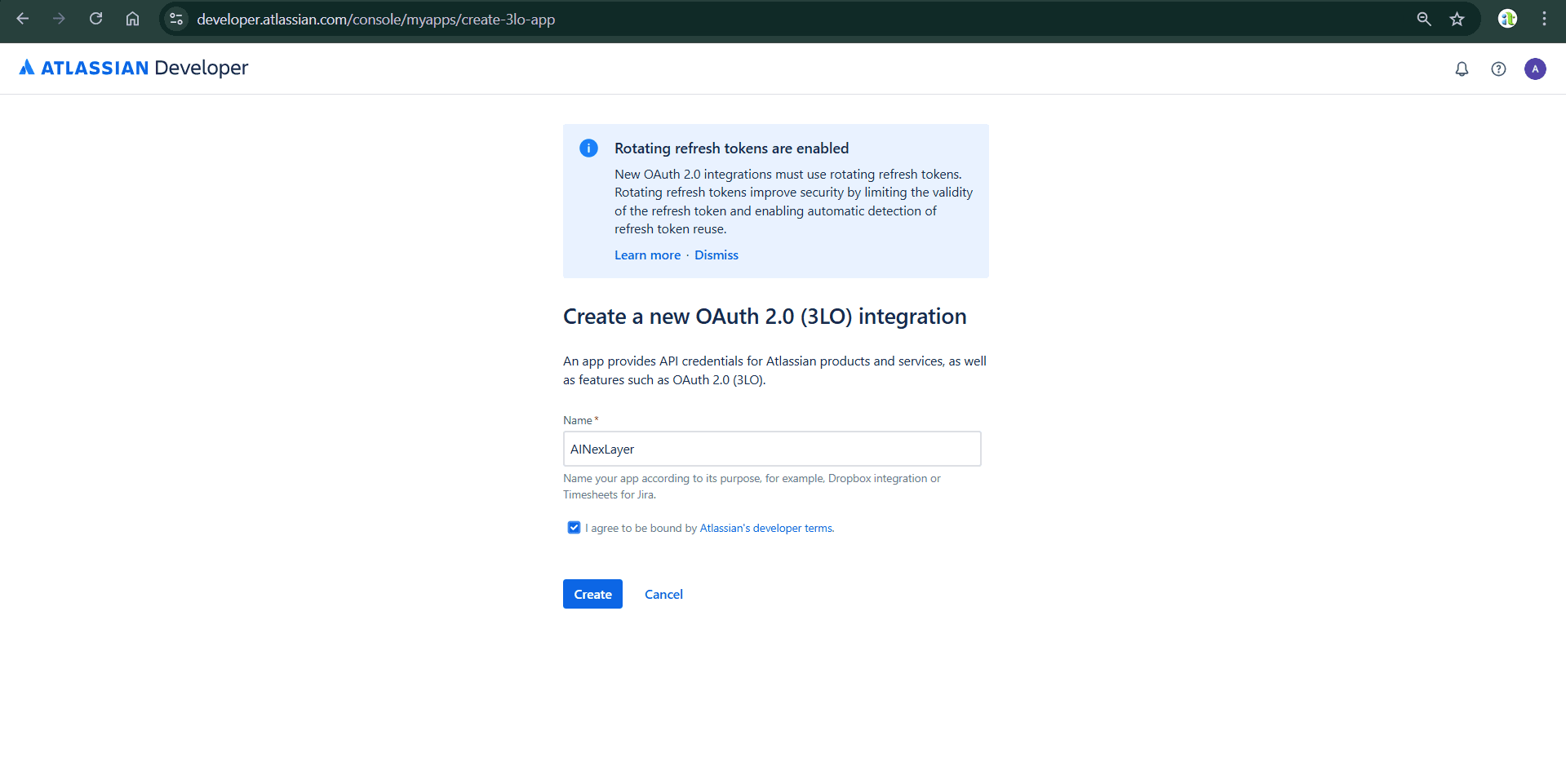
- Enter Name:
AINexLayer - Check the box to agree to Atlassian's developer terms
- Click "Create"
New OAuth 2.0 integrations use rotating refresh tokens, which improve security by limiting token validity and enabling automatic detection of token reuse.
Step 4: Configuring Callback URL
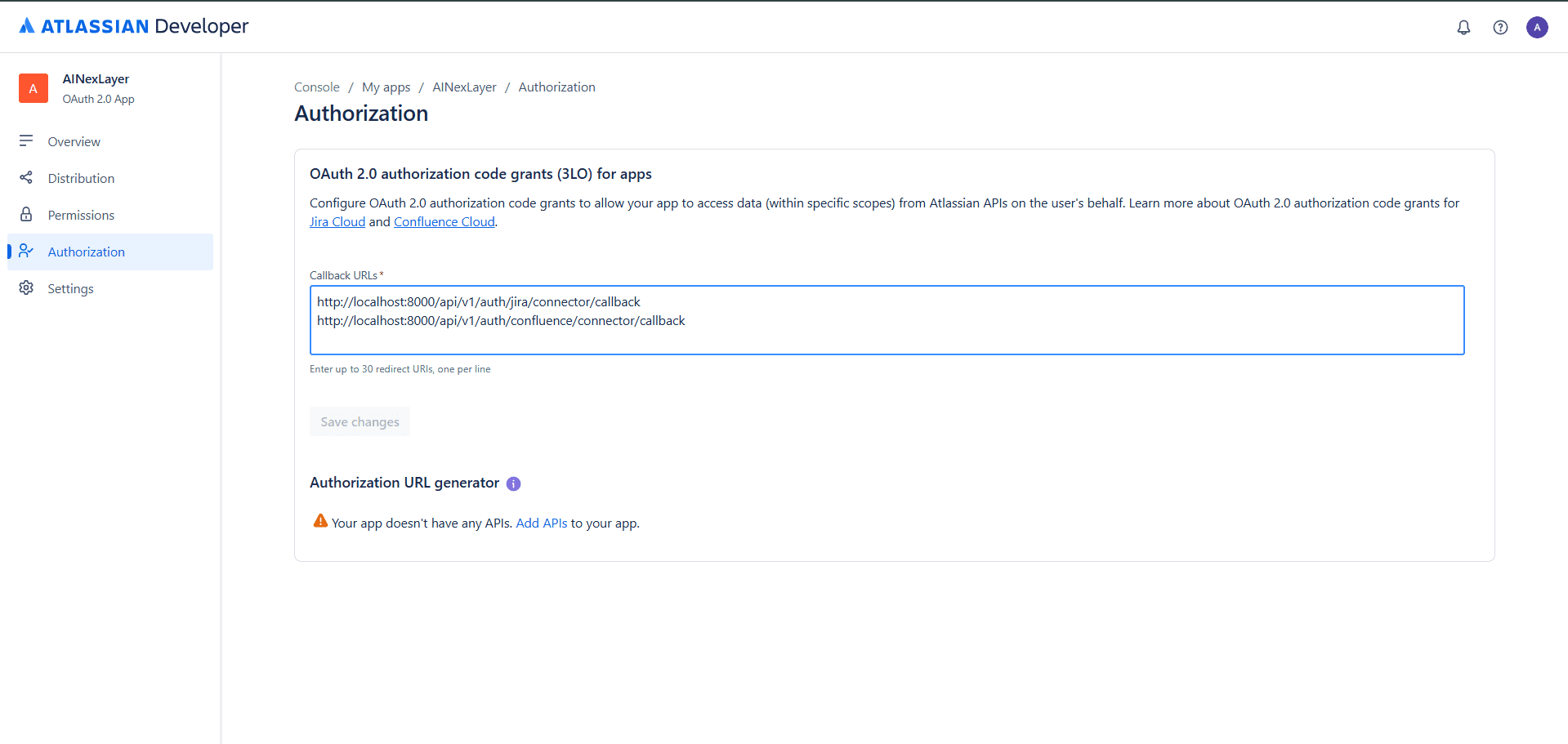
- In the left sidebar, click "Authorization"
- Under Callback URLs, enter the redirect URI:
http://localhost:8000/api/v1/auth/confluence/connector/callback - Click "Save changes"
You can enter up to 10 redirect URIs, one per line.
Step 5: Configuring API Permissions
- In the left sidebar, click "Permissions"
- You'll see a list of available APIs including Confluence API
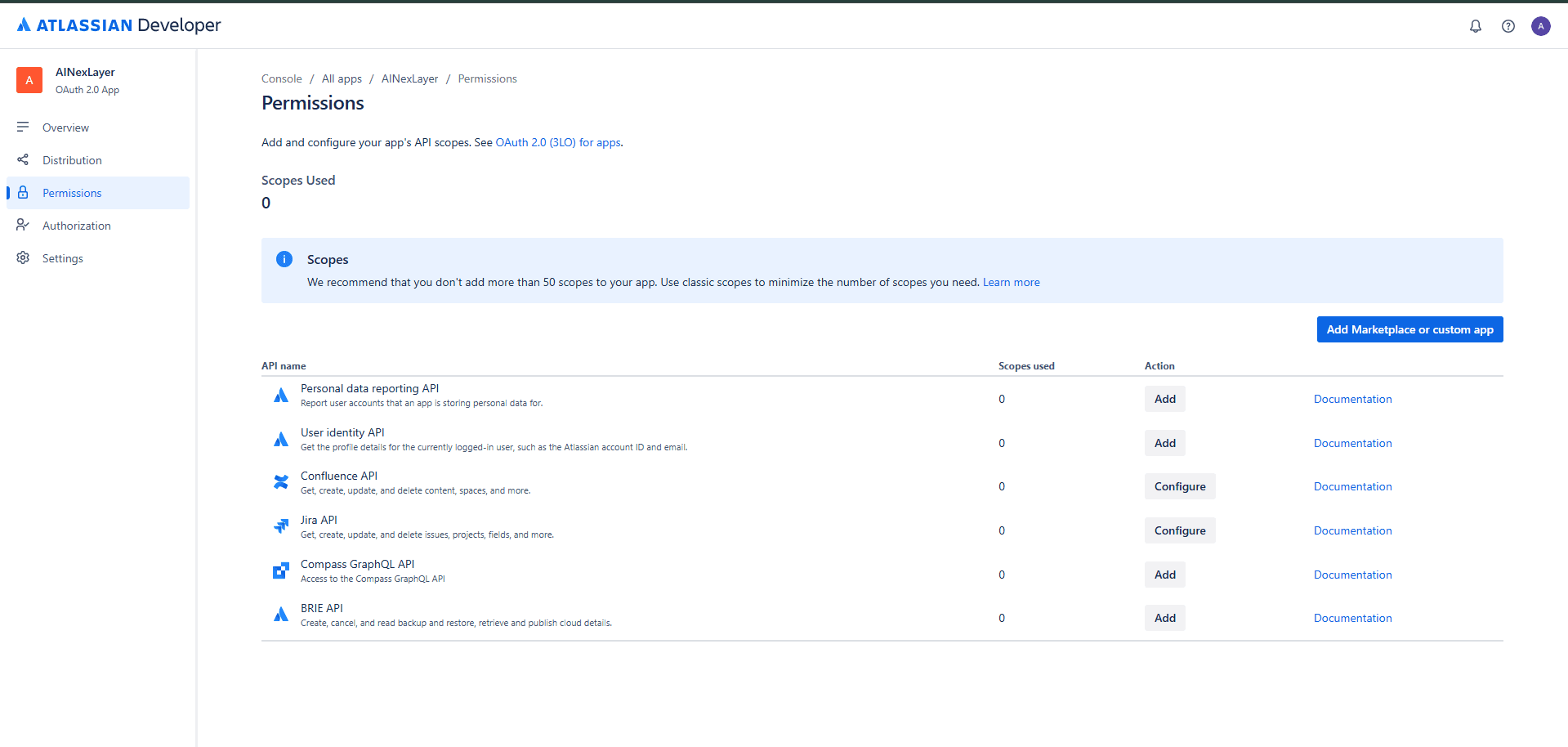
Step 6: Configuring Confluence API Scopes
- Click "Configure" next to Confluence API
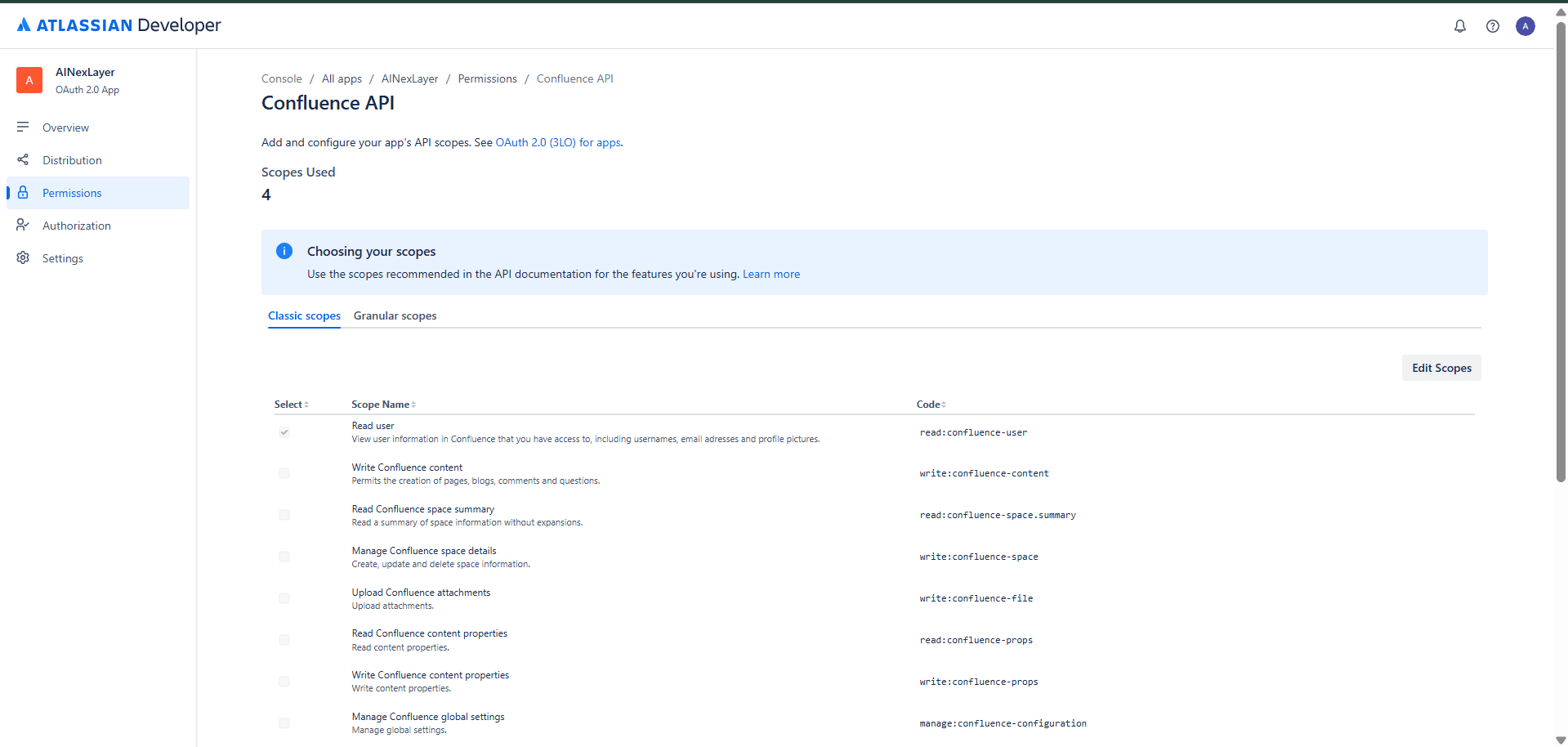
Classic Scopes
Select the "Classic scopes" tab and enable:
| Scope Name | Code | Description |
|---|---|---|
| Read user | read:confluence-user | View user information in Confluence that you have access to, including usernames, email addresses and profile pictures |
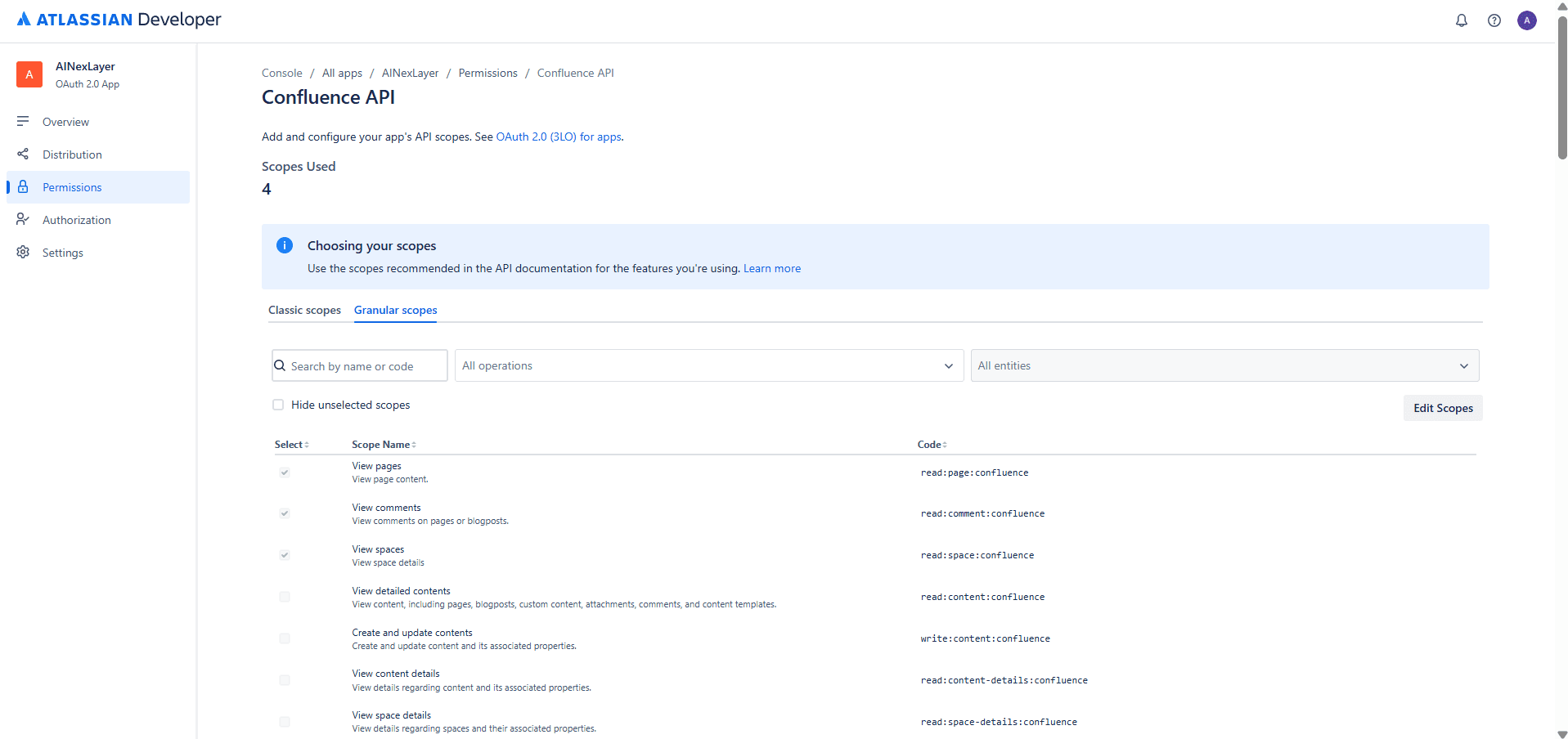
Granular Scopes
Select the "Granular scopes" tab and enable:
| Scope Name | Code | Description |
|---|---|---|
| View pages | read:page:confluence | View page content |
| View comments | read:comment:confluence | View comments on pages or blogposts |
| View spaces | read:space:confluence | View space details |
| Write pages | write:page:confluence | Create and update page content |
| Delete pages | delete:page:confluence | Delete pages |
- Click "Save"
Step 7: Obtaining OAuth Credentials
- In the left sidebar, click "Settings"
- Copy your Client ID and Client Secret
Never share your client secret publicly.
Deploying AINexLayer with Confluence Connector
Add the Atlassian credentials to your .env file (created during Docker installation):
ATLASSIAN_CLIENT_ID=your_atlassian_client_id
ATLASSIAN_CLIENT_SECRET=your_atlassian_client_secret
CONFLUENCE_REDIRECT_URI=http://localhost:8000/api/v1/auth/confluence/connector/callback
Then restart the services:
docker compose up -d