

Discord
Integrate Discord servers with AINexLayer
Discord OAuth Integration Guide
This guide explains how to set up a Discord OAuth integration for AINexLayer.
Step 1: Creating a New Discord Application
- Navigate to discord.com/developers/applications
- Click "New Application"
- Enter the application name:
AINexLayer - Click "Create"
Step 2: Configuring General Information
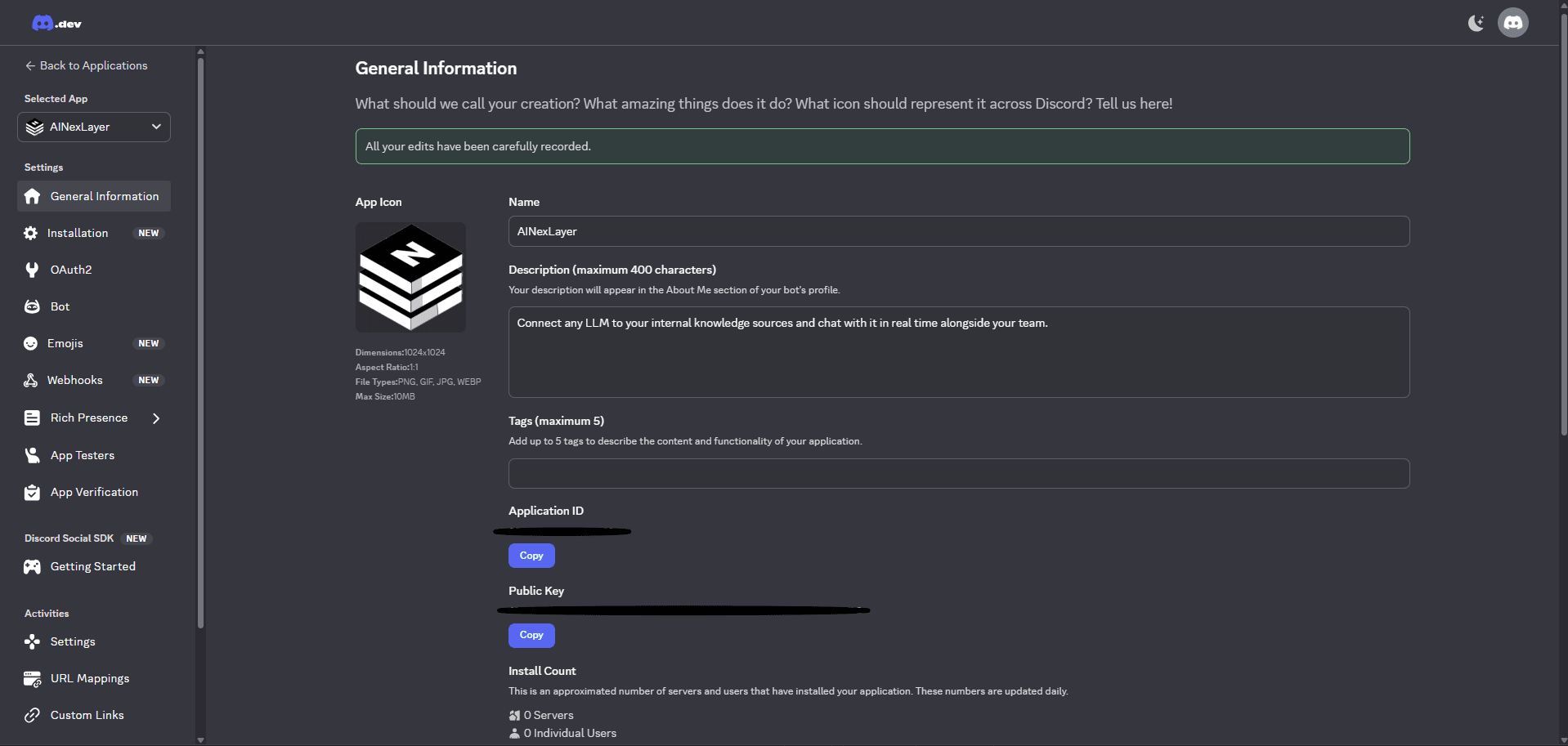
On the General Information page, complete the details:
| Field | Value |
|---|---|
| App Icon | Upload an icon (1024x1024px, PNG/GIF/JPG/WEBP, max 10MB) |
| Name | AINexLayer |
| Description | Connect any LLM to your internal knowledge sources and chat with it in real time alongside your team. |
| Tags | Add up to 5 tags (optional) |
You'll also see your Application ID and Public Key on this page.
Step 3: Configuring OAuth2 Settings
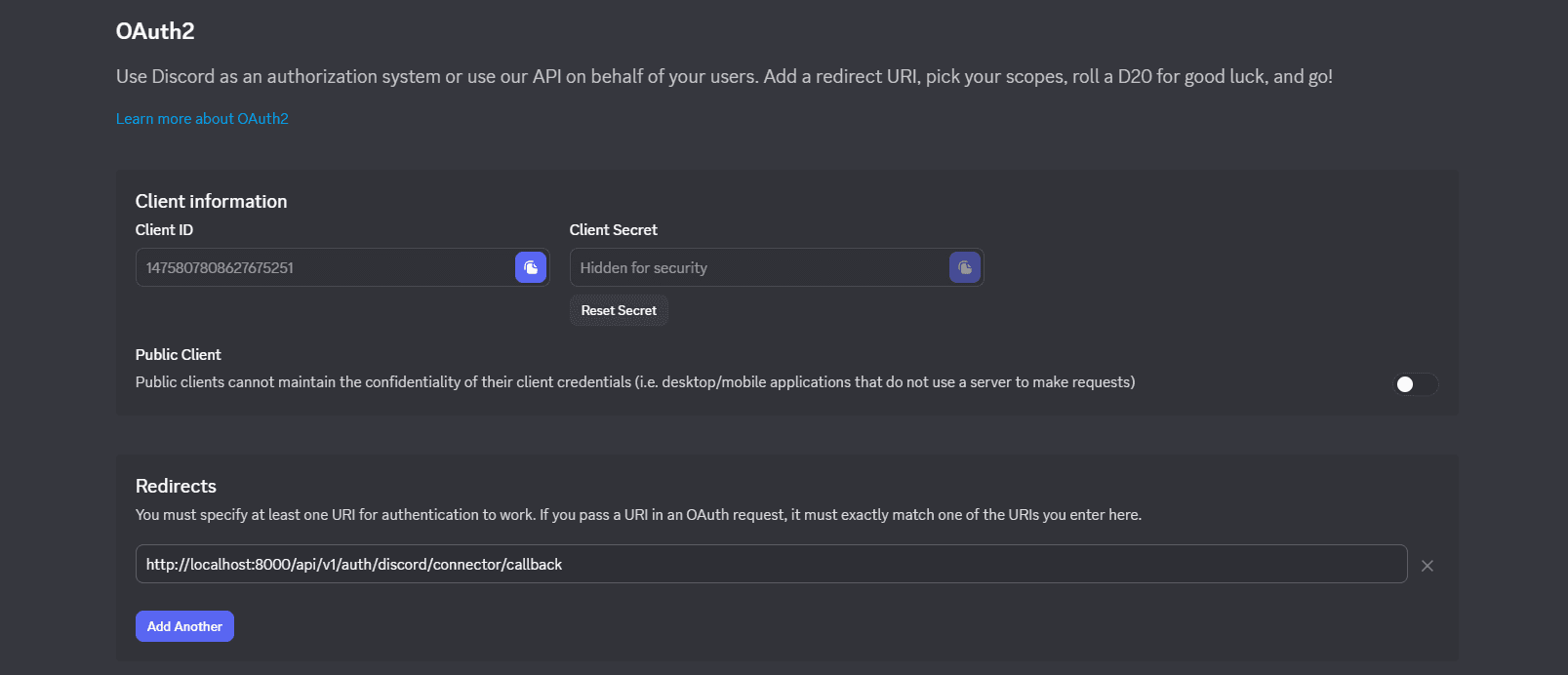
- In the left sidebar, click "OAuth2"
- Copy your Client ID and Client Secret (click to reveal)
- Under Redirects, click "Add Another" and enter:
http://localhost:8000/api/v1/auth/discord/connector/callback
Keep Public Client disabled (off) since AINexLayer uses a server to make requests.
Step 4: Configuring Bot Settings
-
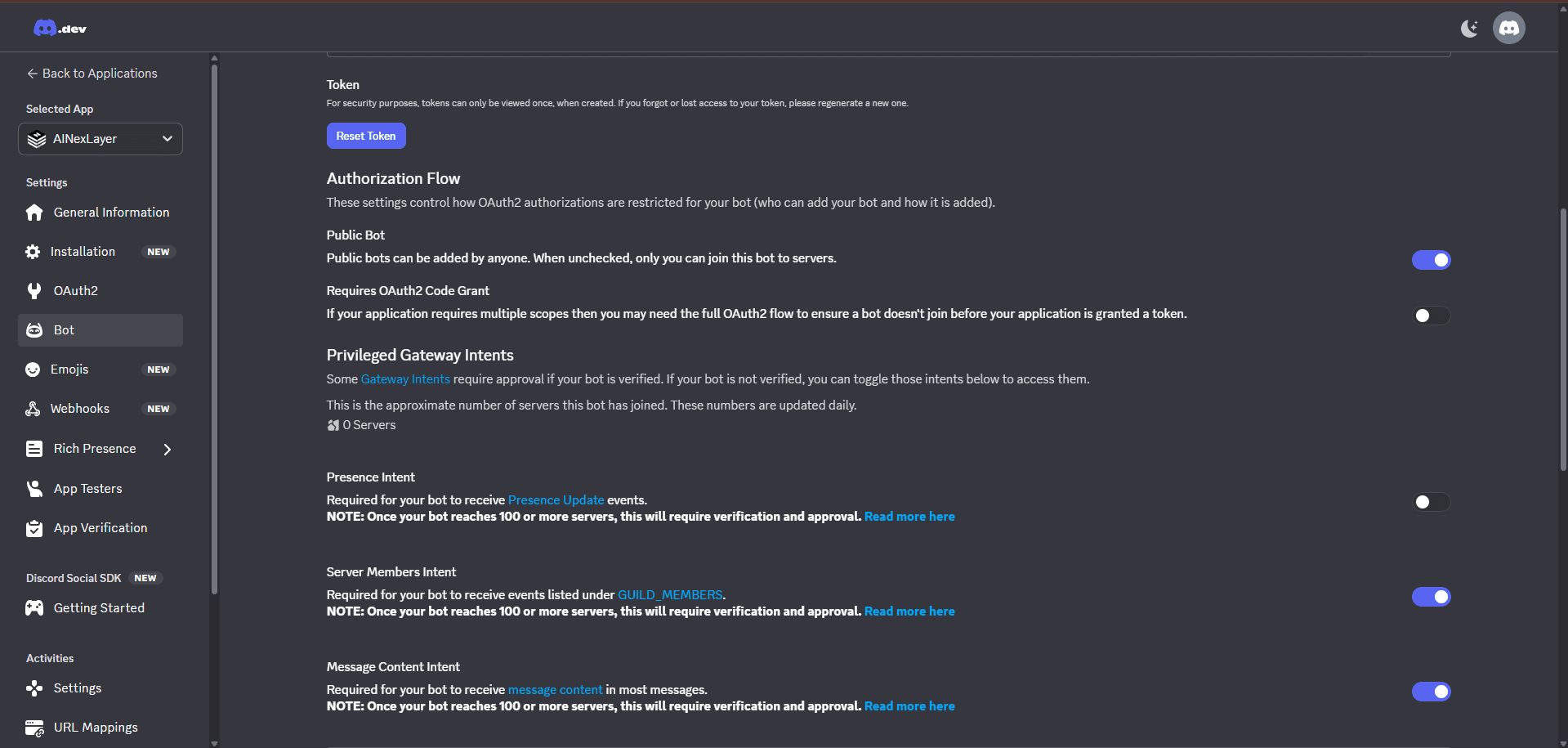
In the left sidebar, click "Bot"
-
Configure the Authorization Flow:
- Public Bot - Enable to allow anyone to add the bot to servers
-
Enable Privileged Gateway Intents:
- Server Members Intent - Required to receive GUILD_MEMBERS events
- Message Content Intent - Required to receive message content
Once your bot reaches 100+ servers, these intents will require verification and approval.
Deploying AINexLayer with Discord Connector
Add the Discord credentials to your .env file (created during Docker installation):
DISCORD_CLIENT_ID=your_discord_client_id
DISCORD_CLIENT_SECRET=your_discord_client_secret
DISCORD_REDIRECT_URI=http://localhost:8000/api/v1/auth/discord/connector/callback
DISCORD_BOT_TOKEN=your_discord_bot_token
Then restart the services:
docker compose up -d