

Gmail
Integrate Gmail with AINexLayer
Gmail OAuth Integration Guide
This guide explains how to set up a Google OAuth 2.0 integration for AINexLayer to connect your Gmail account.
Step 1: Accessing the Google Cloud Console
- Navigate to Google Cloud Console
- Select an existing project or create a new one
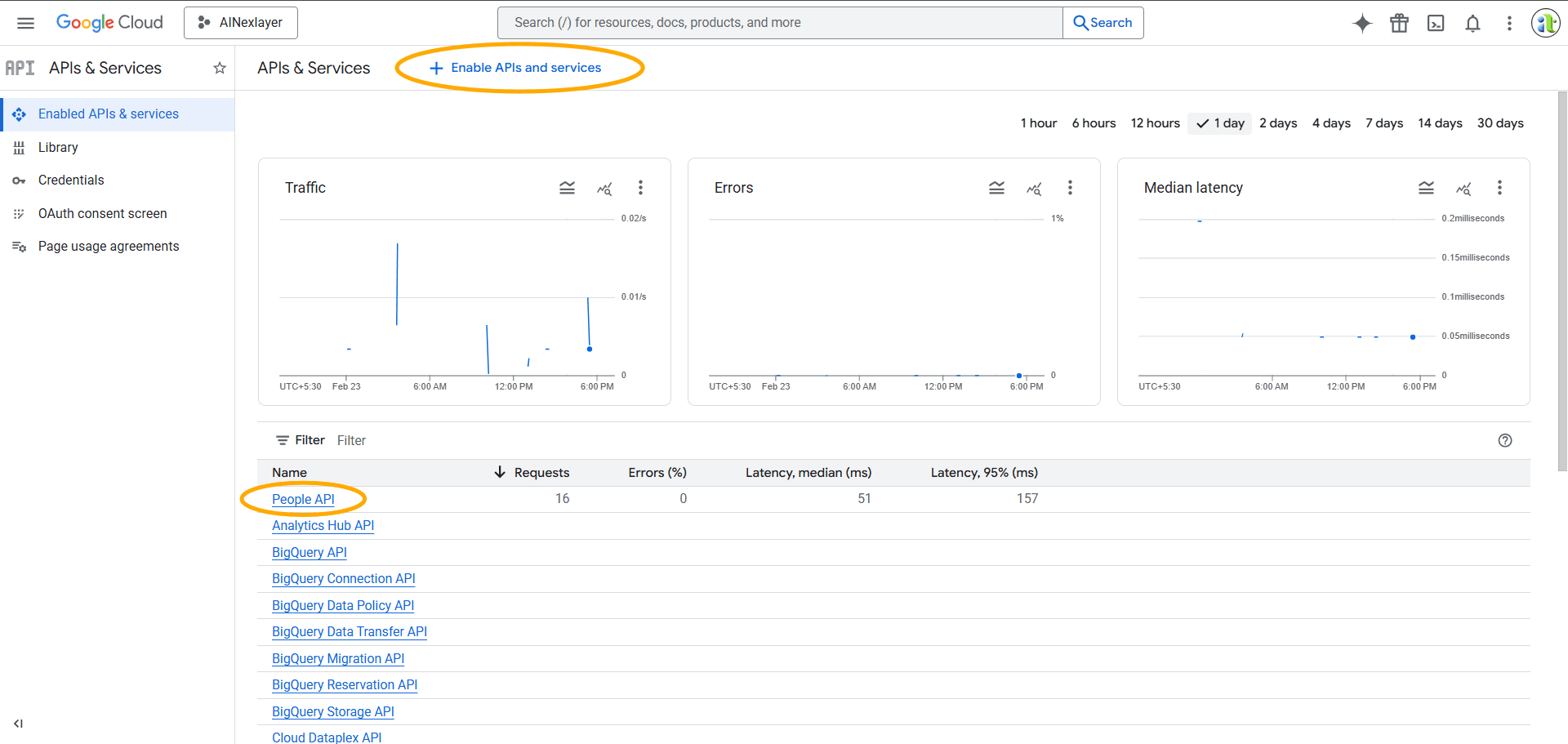
Step 2: Enabling Required APIs
- Go to APIs & Services > Library
- Search for and enable the following APIs:
- People API (required for Google OAuth)
- Gmail API (required for Gmail connector)
Step 3: Configuring OAuth Consent Screen
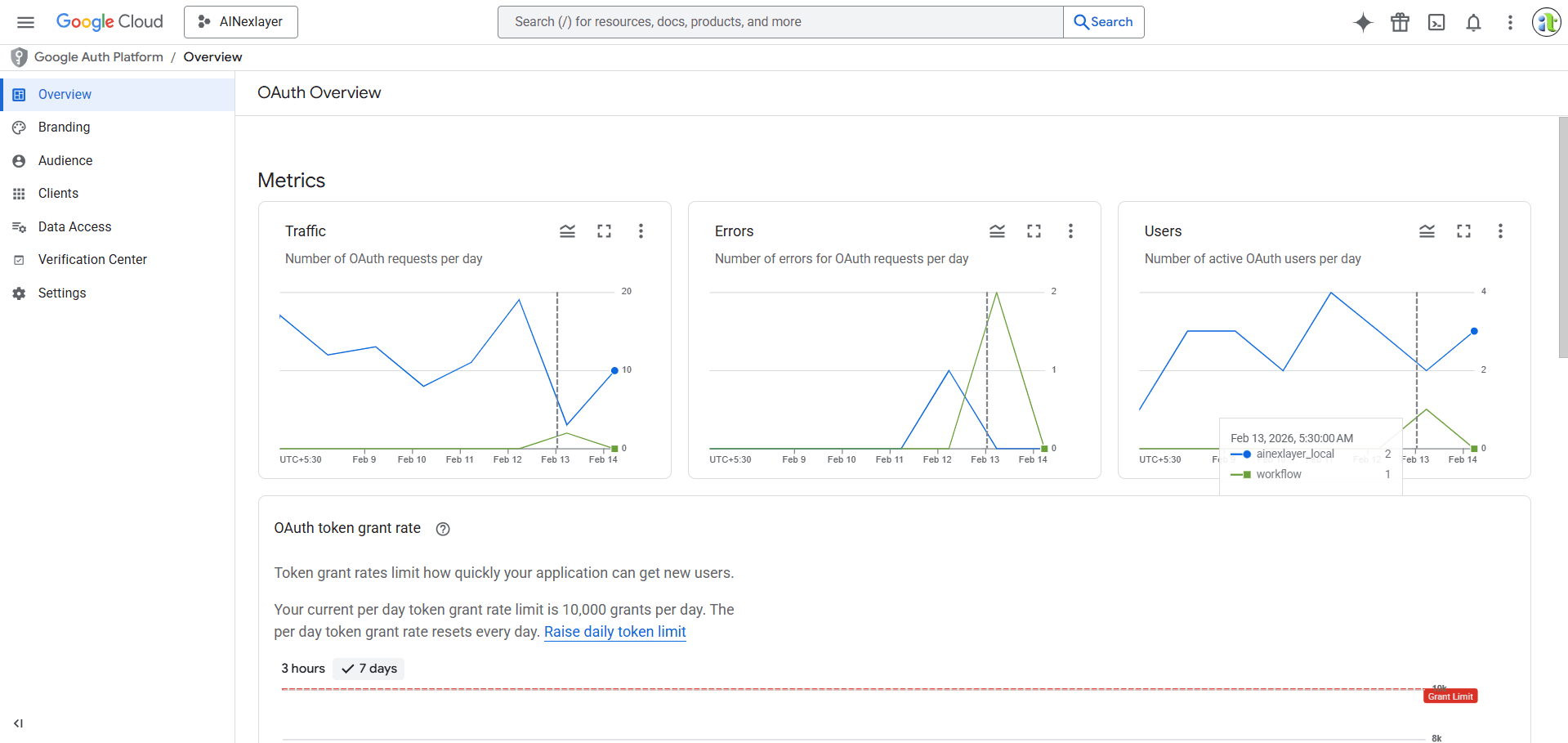
- Go to APIs & Services > OAuth consent screen
- Select External user type (or Internal if using Google Workspace)
- Fill in the required information:
- App name:
AINexLayer - User support email: Your email address
- Developer contact information: Your email address
- App name:
- Click Save and Continue
Adding Scopes
- Click Add or Remove Scopes
- Add the following scopes:
https://www.googleapis.com/auth/gmail.modify- Read, compose, send, and permanently delete Gmail messageshttps://www.googleapis.com/auth/userinfo.email- View user email addresshttps://www.googleapis.com/auth/userinfo.profile- View user profile infoopenid- OpenID Connect authentication
- Click Update and then Save and Continue
The gmail.modify scope is required for HITL (Human-in-the-Loop) tools like sending emails, creating drafts, and trashing messages. If you only need read access, you can use gmail.readonly instead, but HITL tools will not work.
Step 4: Creating OAuth Client ID
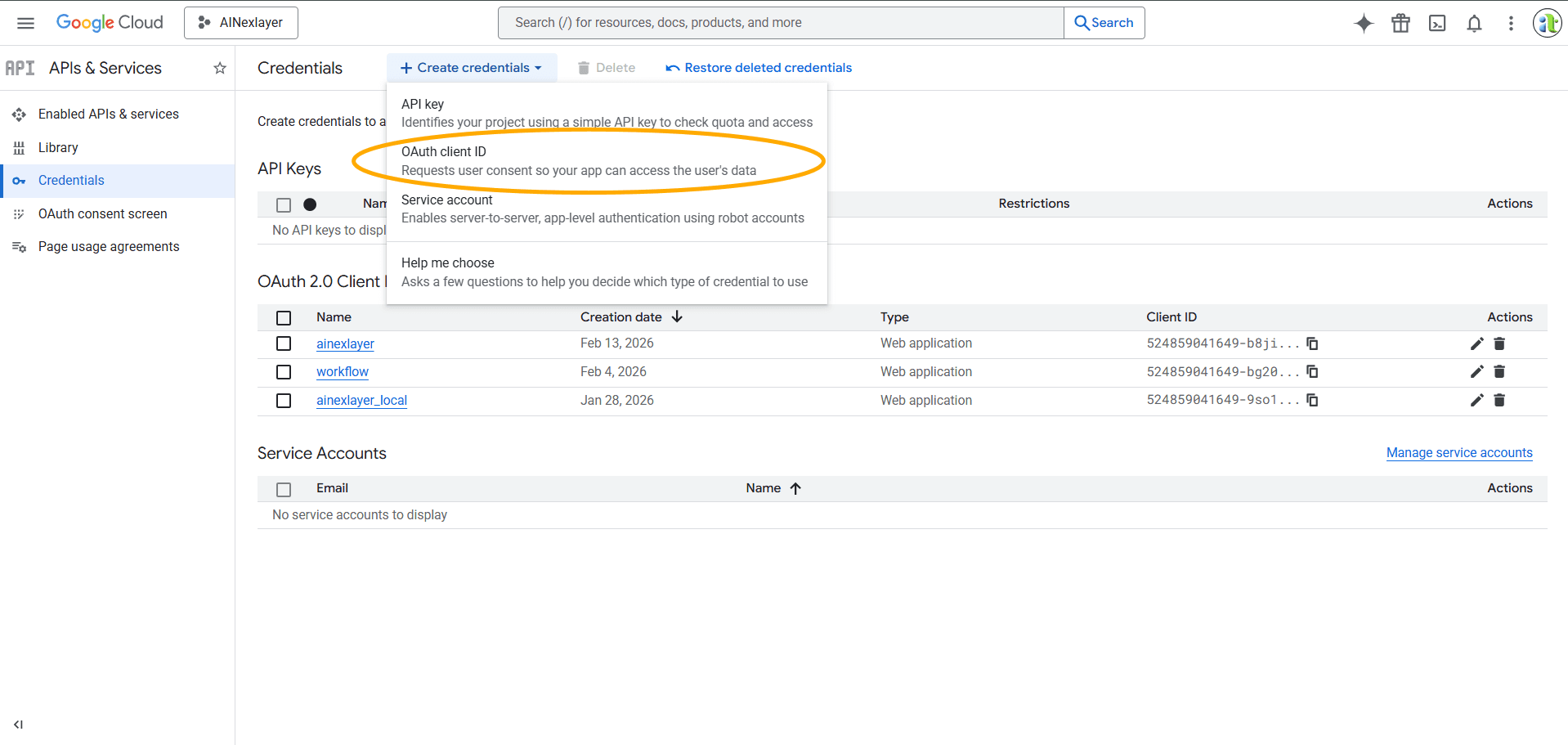
- Go to APIs & Services > Credentials
- Click Create Credentials > OAuth client ID
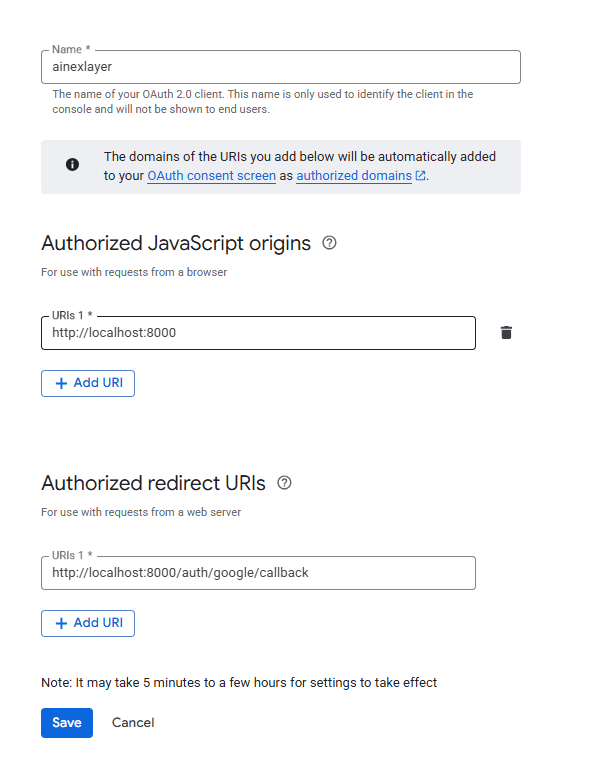
- Select Web application as the application type
- Enter Name:
AINexLayer - Under Authorized redirect URIs, add:
http://localhost:8000/api/v1/auth/google/gmail/connector/callback - Click Create
Step 5: Obtaining OAuth Credentials
- After creating the OAuth client, you'll see a dialog with your credentials
- Copy your Client ID and Client Secret
Never share your client secret publicly.
Deploying AINexLayer with Gmail Connector
Add the Google OAuth credentials to your .env file (created during Docker installation):
GOOGLE_OAUTH_CLIENT_ID=your_google_client_id
GOOGLE_OAUTH_CLIENT_SECRET=your_google_client_secret
GOOGLE_GMAIL_REDIRECT_URI=http://localhost:8000/api/v1/auth/google/gmail/connector/callback
Then restart the services:
docker compose up -d