
Notion
Integrate your Notion workspace with AINexLayer
Notion OAuth Connection Guide
Learn how to establish a secure OAuth connection between your Notion workspace and AINexLayer for seamless data synchronization.
Step 1: Getting Started with Notion Integration
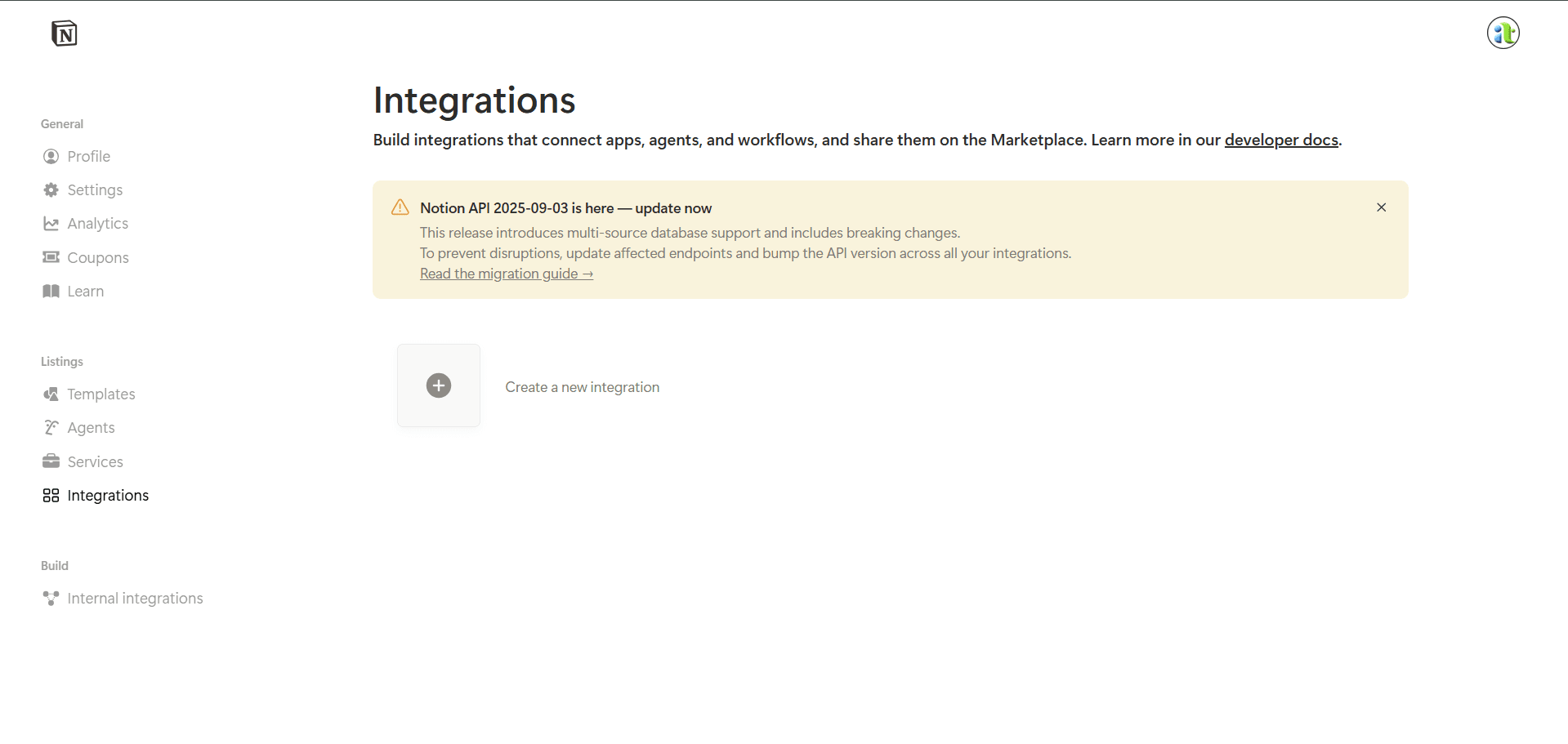
- Visit notion.so/profile/integrations
- Select the "New integration" option
Step 2: Setting Up Your Integration
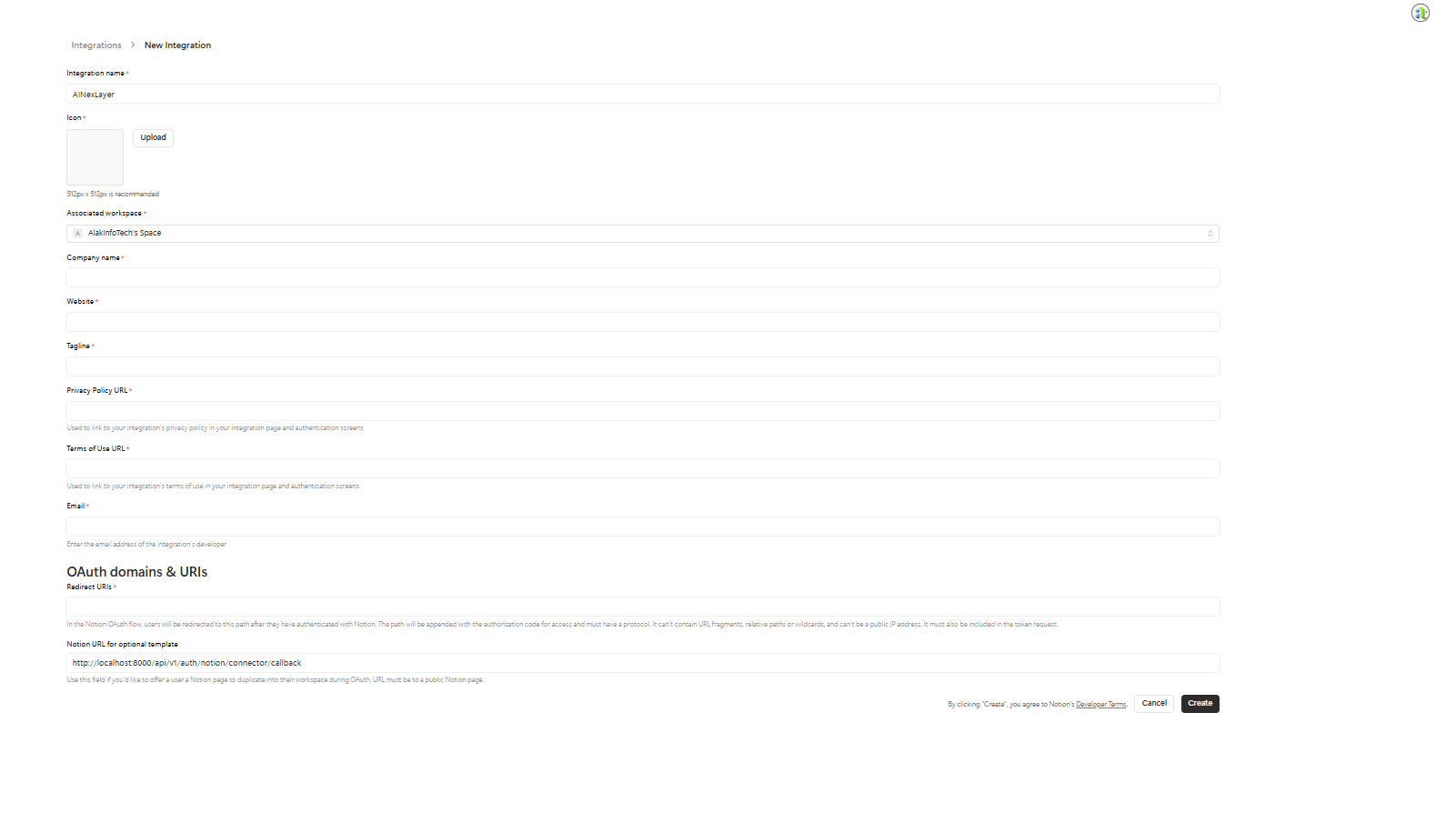
Complete the integration configuration form:
| Field | Value |
|---|---|
| Integration Name | AINexLayer |
| Associated workspace | Choose your workspace |
| Type | Public |
| Company name | Your organization name |
| Website | Your website URL |
| Tagline | Brief description |
| Privacy Policy URL | Your privacy policy URL |
| Terms of Use URL | Your terms of use URL |
| Your developer email | |
| Logo | Upload a 512x512 logo |
OAuth Redirect URI Configuration
In the OAuth domains & URIs section, configure the Redirect URI as:
http://localhost:8000/api/v1/auth/notion/connector/callbackSelect Save to finalize the integration.
Step 3: Retrieving OAuth Credentials & Setting Permissions
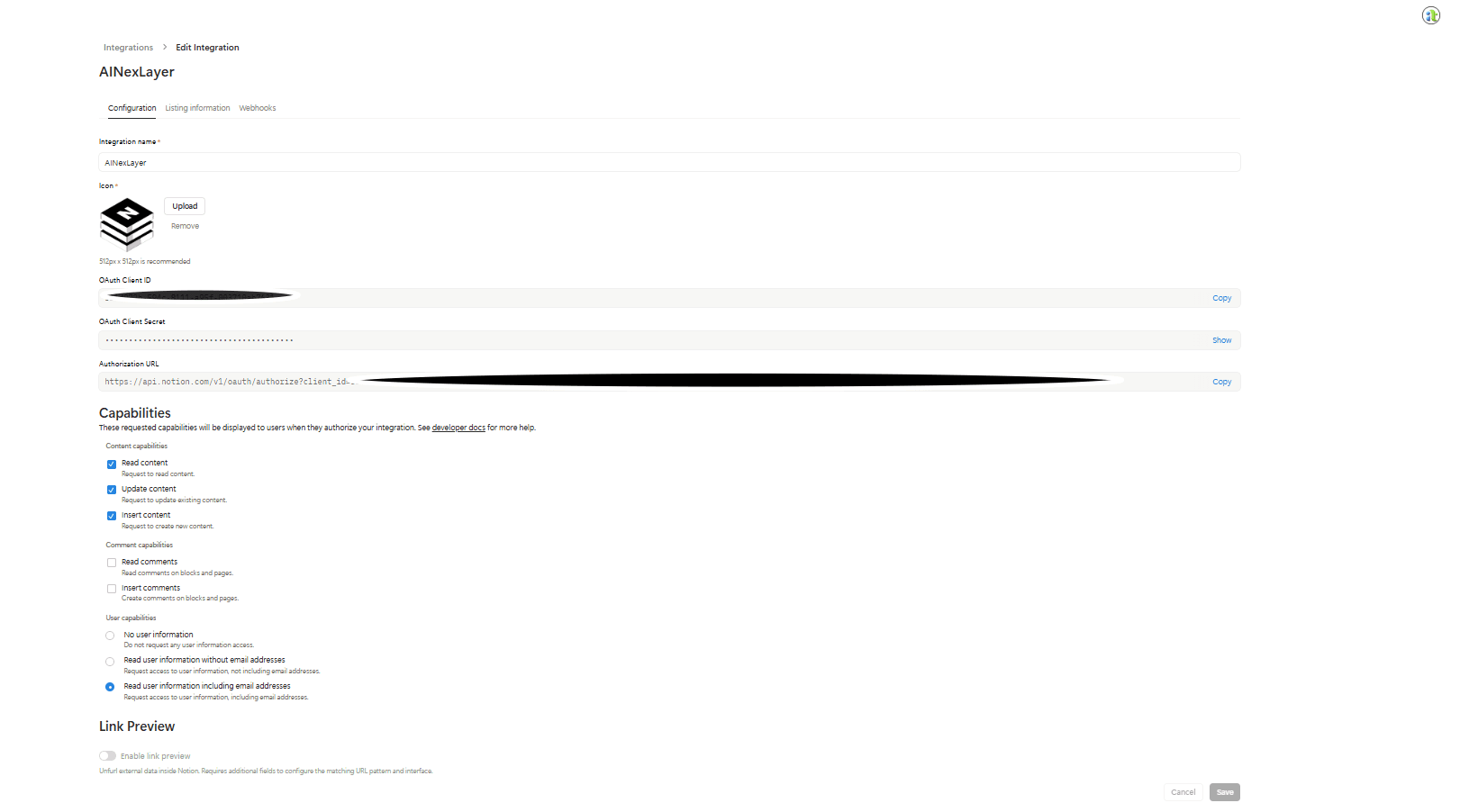
Once the integration is created, you'll access the configuration dashboard:
- Save your OAuth Client ID
- Save your OAuth Client Secret (use Refresh if necessary)
Configure Required Permissions
Activate the following permission sets:
| Permission Type | Required Setting |
|---|---|
| Content Capabilities | Read content |
| Comment Capabilities | Read comments |
| User Capabilities | Read user information including email addresses |
Select Save to apply the permissions.
Known Limitations
The Notion API has restrictions on certain block types that cannot be accessed. AINexLayer will automatically skip these unsupported blocks and continue syncing all other content.
Unsupported Block Types
The following Notion features are not accessible via the Notion API and will be skipped during sync:
- Transcription blocks - Audio/video transcriptions from Notion AI
- AI blocks - AI-generated content blocks
Additional Resources
The Notion API supports specific block types for retrieval. The official list of supported block types is documented in Notion's Block reference:
- Block Object Reference - Official documentation listing all supported block types. Any block type not listed here (such as
transcriptionandai_block) is not accessible via the Notion API.
For additional information:
- Working with Page Content - Guide on how the Notion API handles page content
- Notion API Reference - Complete API documentation
Deploying AINexLayer with Notion Connector
Add the Notion credentials to your .env file (created during Docker installation):
NOTION_OAUTH_CLIENT_ID=your_notion_client_id
NOTION_OAUTH_CLIENT_SECRET=your_notion_client_secret
NOTION_REDIRECT_URI=http://localhost:8000/api/v1/auth/notion/connector/callback
Then restart the services:
docker compose up -d