

Slack
Integrate your Slack workspace with AINexLayer
Slack OAuth Connection Guide
Follow these steps to configure a Slack OAuth integration for AINexLayer.
Step 1: Creating a New Slack Application
- Go to api.slack.com/apps
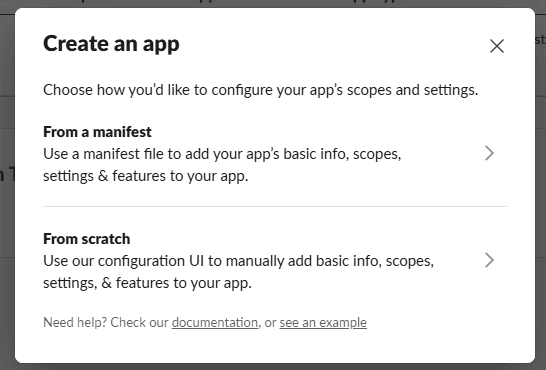
- Click "Create New App"
- Choose "From scratch" to manually configure your app
Step 2: Naming Your App & Selecting Workspace
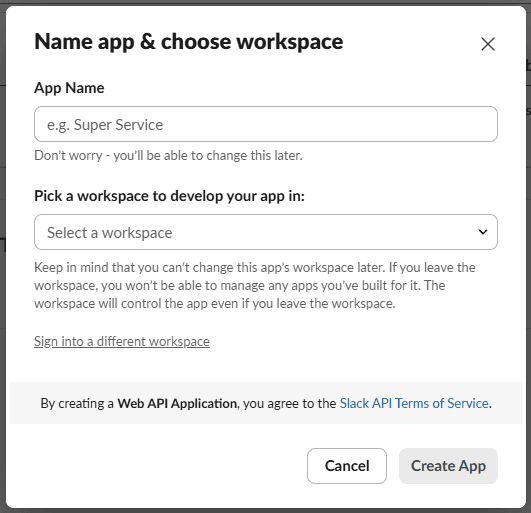
- Enter App Name:
AINexLayer - Choose the workspace where you'll develop your app
- Click "Create App"
The workspace selection cannot be changed later. The workspace will control the app even if you leave it.
Step 3: Obtaining App Credentials
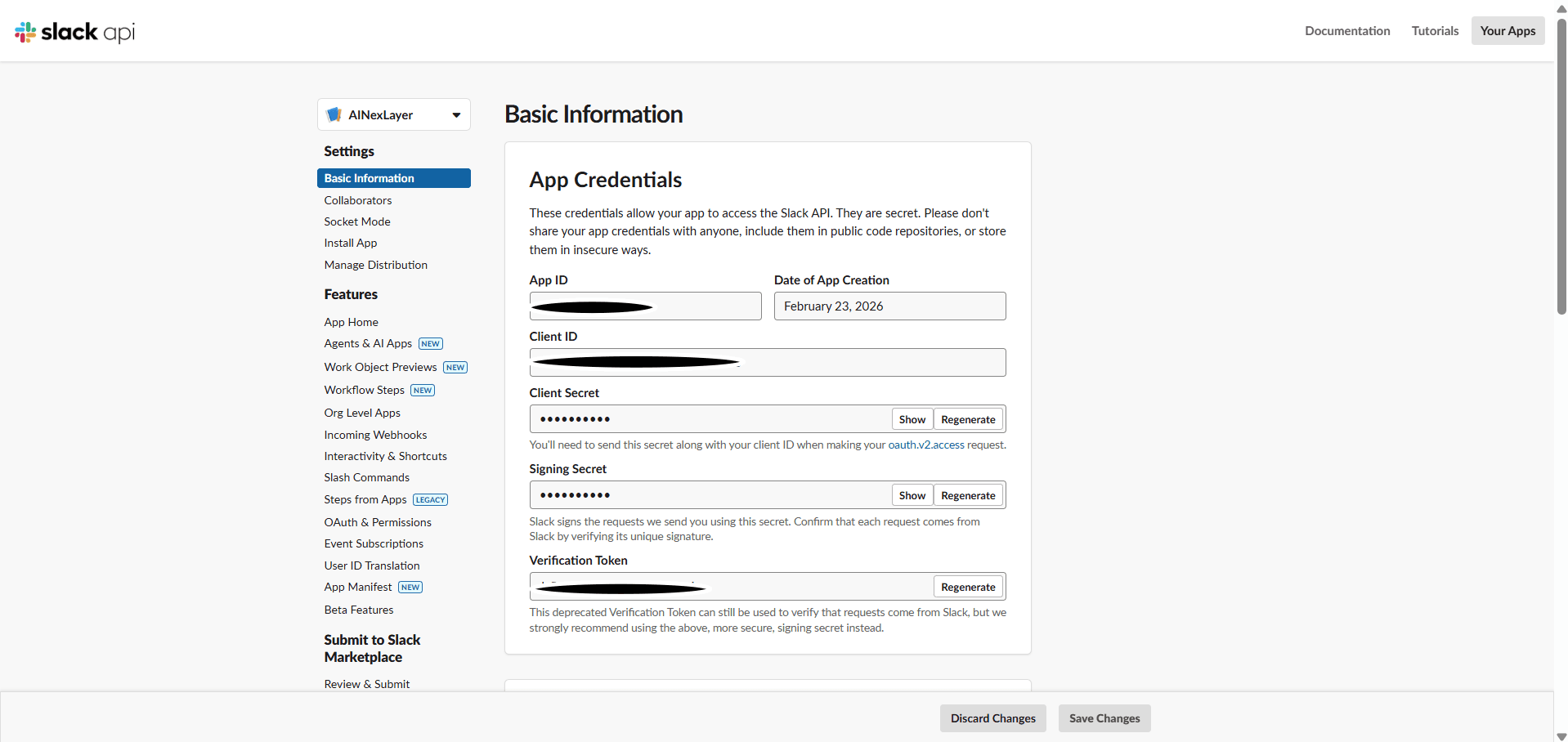
After creating the app, navigate to the Basic Information page to find your credentials:
- Copy your Client ID
- Copy your Client Secret (click Show to reveal)
Keep your app credentials secure and never share them publicly.
Step 4: Configuring Redirect URLs
- In the left sidebar, click "OAuth & Permissions"
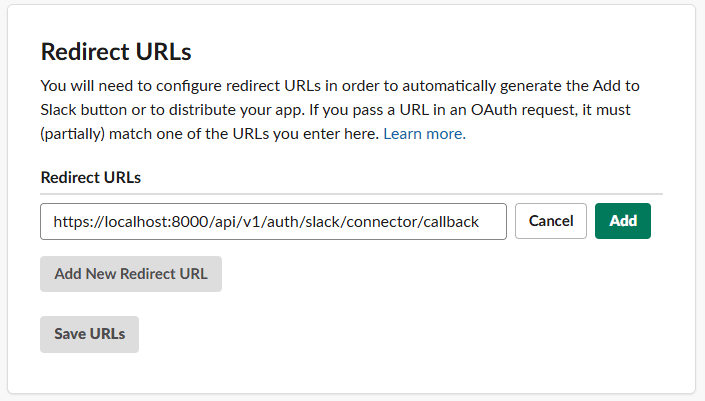
- Scroll down to Redirect URLs
- Click "Add New Redirect URL"
- Enter:
https://localhost:8000/api/v1/auth/slack/connector/callback - Click "Add", then "Save URLs"
Step 5: Setting Up Bot Token Scopes
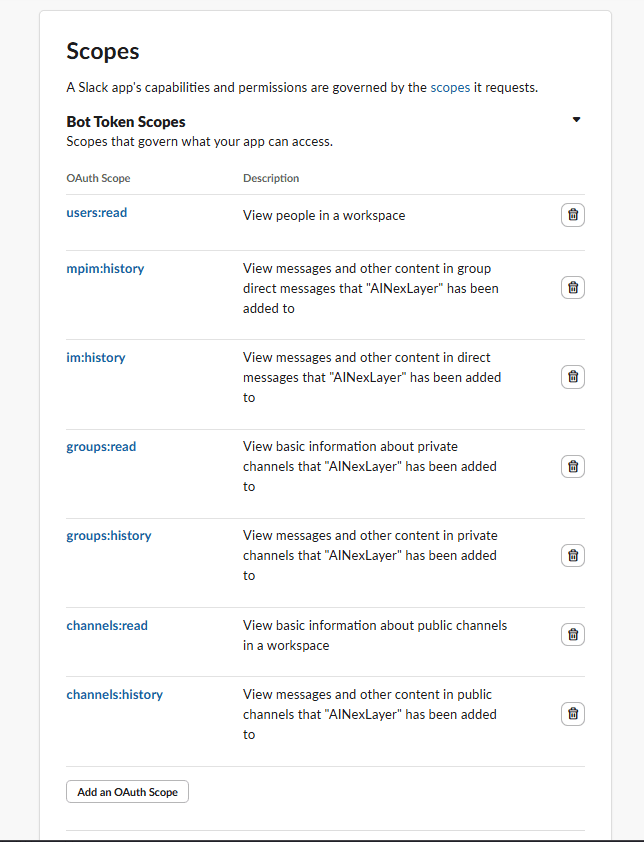
On the same OAuth & Permissions page, scroll to Scopes and add the following Bot Token Scopes:
| OAuth Scope | Description |
|---|---|
channels:history | View messages and other content in public channels |
channels:read | View basic information about public channels |
groups:history | View messages and other content in private channels |
groups:read | View basic information about private channels |
im:history | View messages and other content in direct messages |
mpim:history | View messages and other content in group direct messages |
users:read | View people in a workspace |
Click "Add an OAuth Scope" to add each scope.
Step 6: Enabling Public Distribution
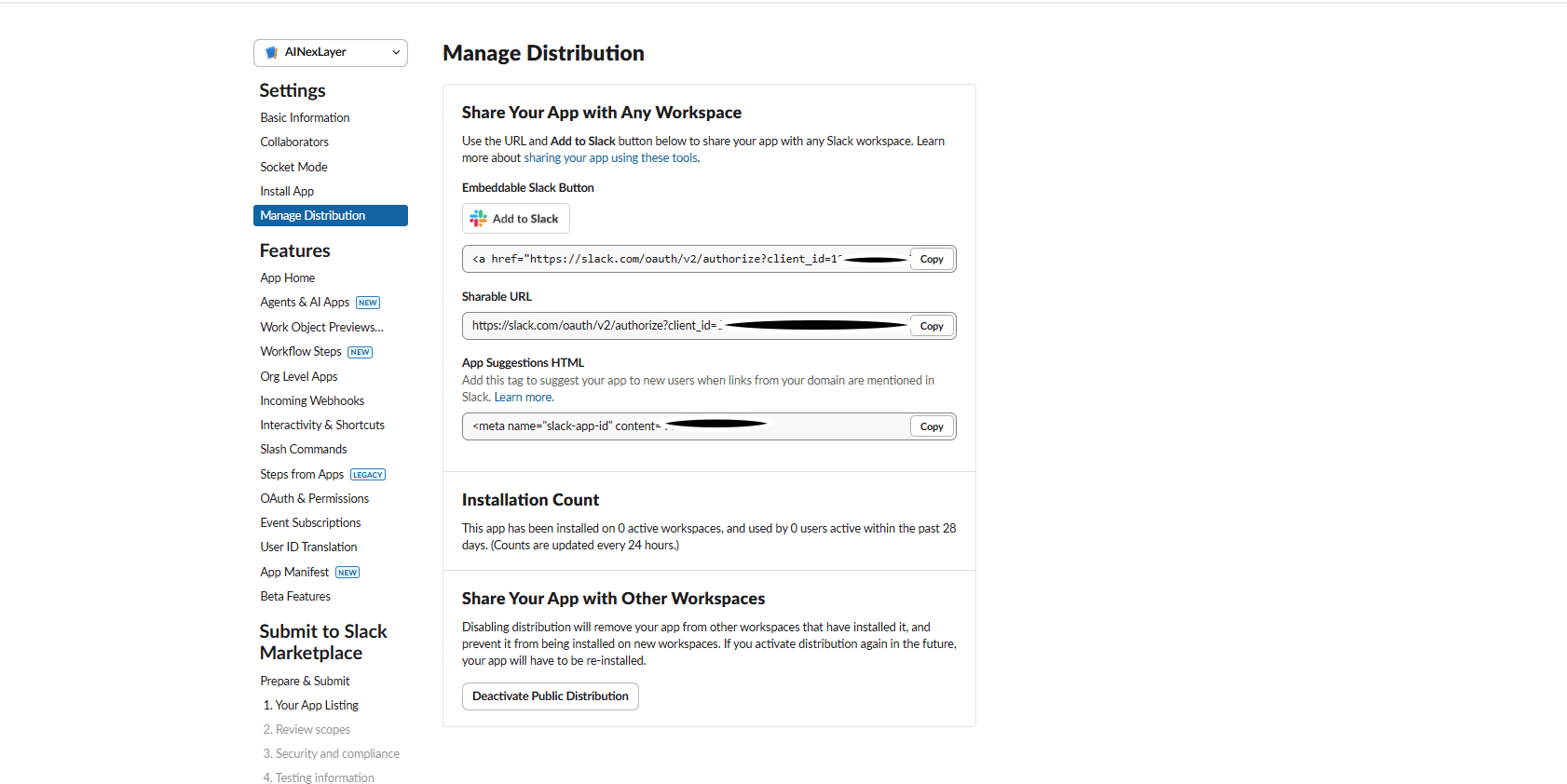
- In the left sidebar, click "Manage Distribution"
- Under Share Your App with Other Workspaces, ensure distribution is enabled
- You can use the "Add to Slack" button or Sharable URL to install the app
Deploying AINexLayer with Slack Connector
Add the Slack credentials to your .env file (created during Docker installation):
SLACK_CLIENT_ID=your_slack_client_id
SLACK_CLIENT_SECRET=your_slack_client_secret
SLACK_REDIRECT_URI=http://localhost:8000/api/v1/auth/slack/connector/callback
Then restart the services:
docker compose up -d